

This feature leverages artificial intelligence (AI) to analyze and optimize voice interactions. Whether you’re managing customer calls, sales conversations, or support inquiries, Conversational Intelligence provides valuable insights to improve communication and efficiency.
Set up Conversational Intelligence
Settings are found in Fastcall Settings > Admin Settings > Conversational Intelligence > Settings.

To turn on Transcriptions:
- Select a Transcription Provider.
- Select a Transcription Language.
- Enable/Disable Live transcription for all calls – Automatically begins transcribing speech in real time as soon as a call connects, allowing agents and admins to follow along with a live text representation of the conversation.
- Enable/Disable Transcribe and process all calls on termination – When enabled, all incoming and outgoing calls will be automatically transcribed and processed using the selected AI provider upon call completion. This includes generating summaries, sentiment analysis, and other configured features.
- Enable/Disable Transcribe and process all voicemails – When enabled, all voicemail recordings will be automatically transcribed and processed using the selected AI provider upon call completion. This includes generating summaries, sentiment analysis, and other configured features.
- Enable/Disable Transcription Summary – Automatically generates a concise summary of the call conversation highlighting key points, topics discussed, and important outcomes. This helps quickly understand call content without reading the full transcript.
- Enable/Disable Sentiment Analysis – Analyzes the emotional tone and sentiment of the conversation. Possible values are positive, negative, mixed or neutral.
- Enable/Disable Disclosure Detection – Automatically detects when recording disclosure statements are made during calls, helping ensure compliance with legal requirements for call recording notifications and consent.
- Enable/Disable Answering Machine Detection – Automatically identifies when calls reach voicemail or answering machines instead of live persons. This helps distinguish between actual conversations and automated responses for better call analytics.
- Save Provider Settings.
You can enable automatic call transcription to have all calls transcribed seamlessly. If this option is not enabled, you can manually request a transcription by clicking “Request Transcription” in the top-right menu of the call.

With Fastcall Conversational Intelligence, businesses can streamline workflows, improve customer experiences, and gain deeper insights from every call.

Conversational Intelligence processes post-call recordings, so it’s essential to enable Call Recording and Dual Channel Recording in the Call Recording General Settings tab.

Dual Channel Recordings are a crucial feature that significantly enhances the Voice Intelligence platform’s performance. By assigning each speaker to a separate audio channel, it improves voice differentiation, boosts transcription accuracy, and enables more precise speaker recognition. This results in clearer audio recordings, more accurate sentiment analysis, and improved keyword detection, making it an essential tool for generating reliable and meaningful voice analytics.
Add Conversational Intelligence fields to Call object page layout
Navigate to the Setup gear icon and select Edit Object.
In the page layout editor, locate the Recording section and drag the following fields into it:
- Answering Machine Detected
- Recording Disclosure Detected
- Sentiment Analysis
- Summary
- Transcription
Make sure to save your changes before exiting the layout editor.

The newly added fields will be displayed in the Call custom object.

More information about Call Recordings here.
Live Transcription and Captions
Follow every conversation in real time in Fastcall. During active calls, you can view real-time transcriptions and captions directly from the call interface, making conversations easier to follow, review, and understand, without missing important details.
Whether you’re in a noisy environment or simply need additional visibility during calls, Live Transcriptions help improve communication and accessibility for your team.
Softphone
- To see Live Transcriptions, click on the “Show Live Transcription” button in the call header.

- To see Live Captions, click on the “Enable Live Captions” button in the actions footer.

Control Panel
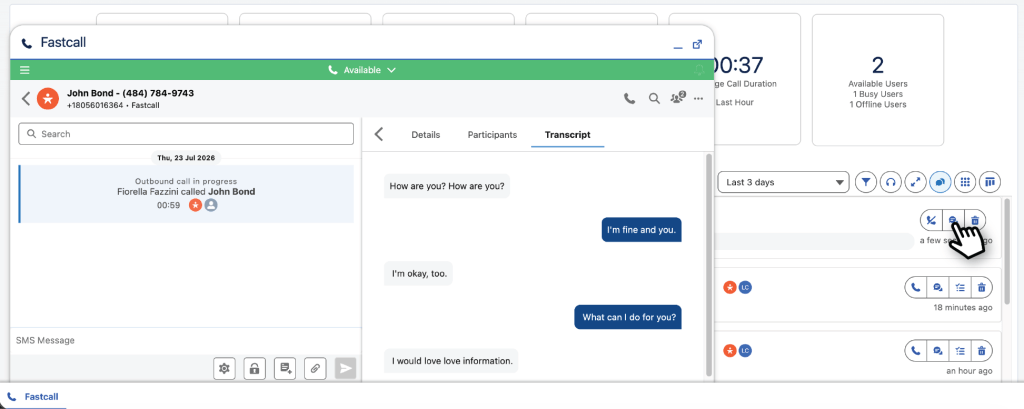
During an active call, administrators can monitor the conversation in real time using Live Captions and Live Transcription from the Control Panel. These features improve accessibility and allow supervisors to follow conversations as they happen without interrupting the call.
- The Show/Hide Captions button is located in the Filters section at the top-right of the Control Panel.
Click this button to display or hide live captions for the active call. Captions are updated in real time as participants speak, making it easier to follow the conversation while monitoring multiple calls.

- The See Live Transcription button is available during an active call.
Select this option to open the live transcription panel in the softphone, where you can view the conversation as it is transcribed in real time. The transcription updates continuously throughout the call, allowing administrators and supervisors to monitor the discussion as it happens.
Salesforce Mobile App
- The Mobile Control Panel includes the same Show/Hide Captions and See Live Transcription buttons available in the Desktop Control Panel.
Both buttons work the same way as they do on the Desktop Control Panel, providing real-time visibility into active conversations directly from the Salesforce Mobile app.

Last updated: Fastcall version 9.4.0, 2026-07-20