

In this unit, we’ll cover how to set up the Dial and SMS by list functionality of Fastcall. This functionality helps you contact large numbers of Salesforce records, which is useful for an ‘outbound call center’ type of setup. Both, Dial by list and SMS by list are capabilities that must be enabled by Fastcall support. End-user training is here.
Enable upgrade features
Once the capabilities have been enabled in your Salesforce org, you can turn on Dial by list in Fastcall Settings > Admin Settings > Call Handling > Dial by List and SMS by list in Fastcall Settings > Admin Settings > Call Handling > Upgrade Features.


Add the button to the record layout
In order for your users to use the functionality, you need to add the relevant control to the standard Salesforce record layout in Salesforce Settings.
Go to Setup menu > Edit object

In the List View Button Layout, click Edit to add Dial with Fastcall as a button. This button controls both: Dial and SMS by list. The custom button is available with standard Salesforce records (Leads, Contacts, Accounts).

Select Dial with Fastcall and add it to the Selected Buttons column.

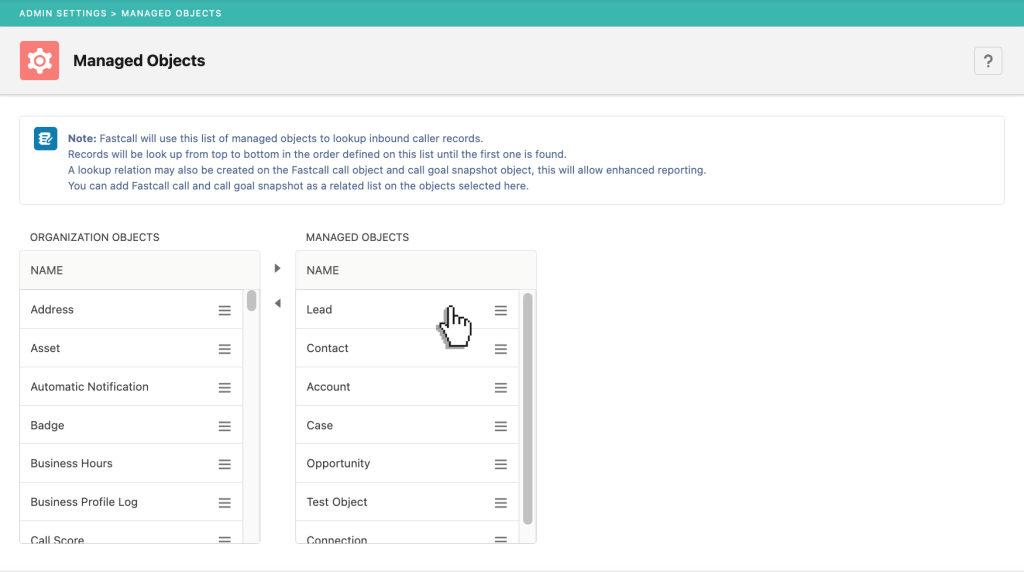
Fastcall can create a custom button for your custom objects. We do this in the Managed Objects settings. Add your custom object and drag it into managed objects, a custom button will be available to add to your search layout. The button will now appear in List Views for that record type.

To learn how dial-by-list works for the user please see the user training page.
Last updated: Fastcall v9.1.9, 2026-02-16