

In this unit, you will learn how to verify a new phone number.
Verified phone numbers
Verifying phone numbers that you own, for example, your mobile or office landline means having these ‘verified’ with Twilio. You can use these as caller IDs on outbound calls, but you can’t take inbound calls on a verified phone number via Fastcall. Provisioned phone numbers are phone numbers that have been bought through Twilio. You can use these to take incoming calls and as caller ID on outbound calls. Provisioned numbers do not need to be verified.
How to verify a phone number
Go to Fastcall Settings > Admin Settings > Phone Numbers > Manage Phone Numbers, and click the “Verify New Phone Number” button.

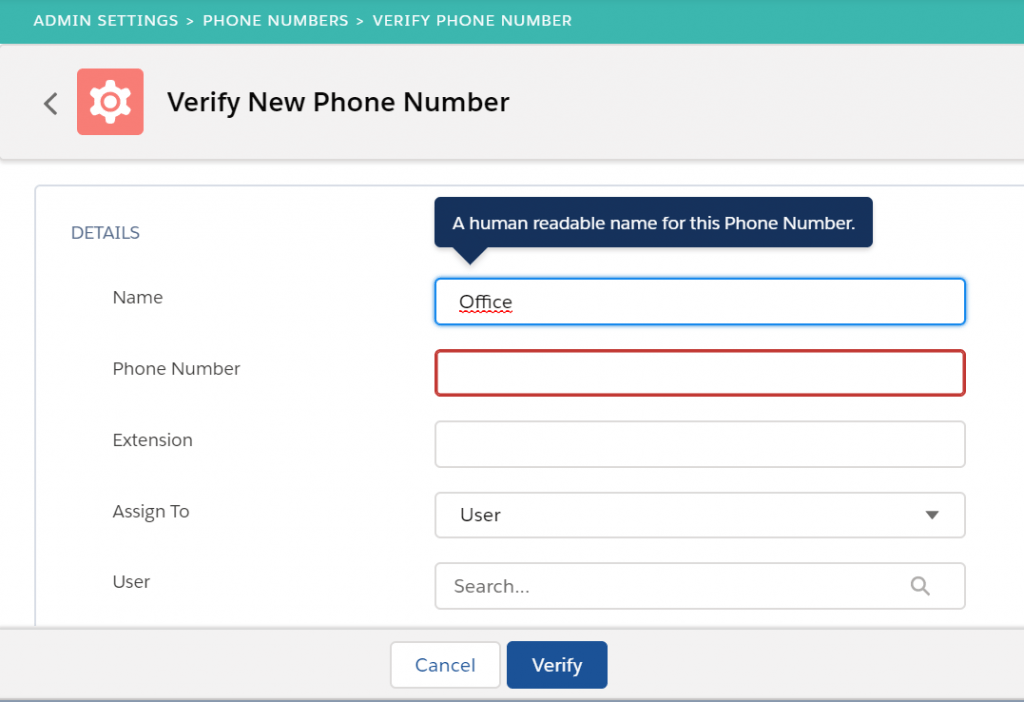
Enter the details
Enter the details of the phone number you wish to verify
Verify
Click “Verify.” You will receive a call from Twilio; answer the phone, and then type in the verification code given by Twilio on the phone. Verified numbers can be assigned to a single user or to a group where all users in the group can use the caller ID.

Changing the properties of a verified phone number is covered in its own training unit.
It’s OK to delete a verified number, you can always verify it again.
Last updated: Fastcall version 9.2.0, 2026-02-20